 Flag It First
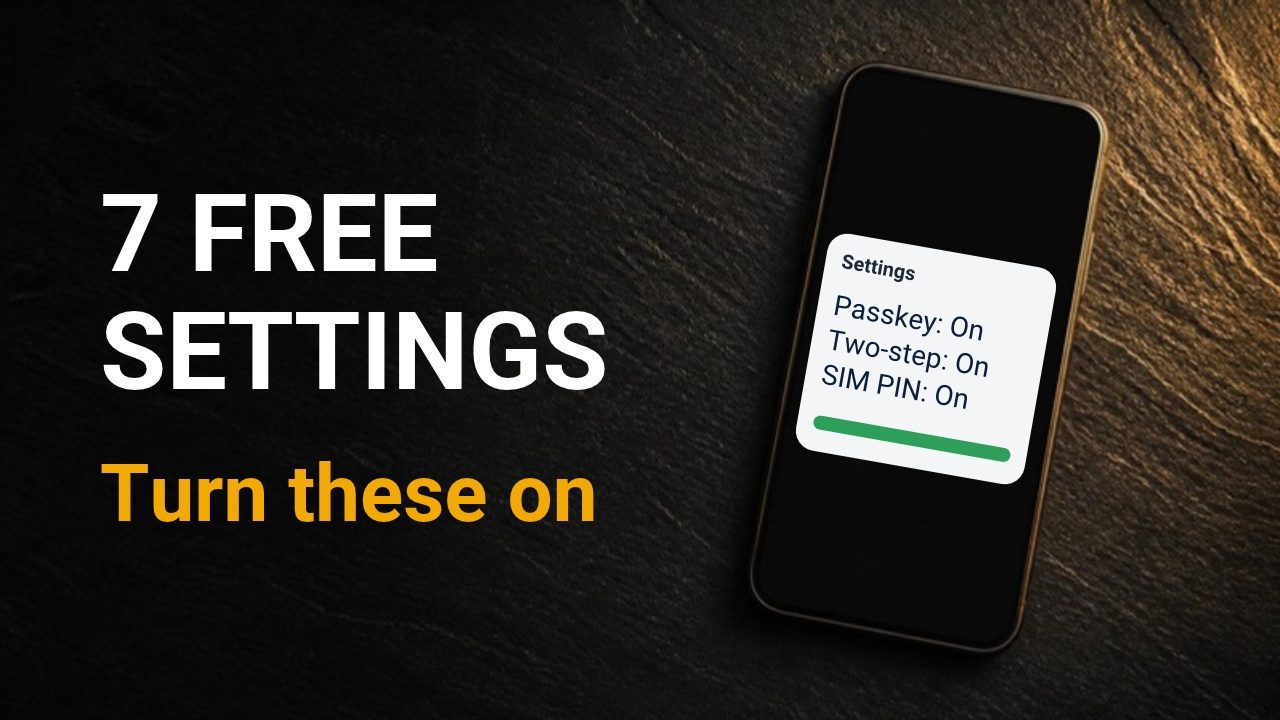
7 free phone settings that stop scams and account hacks
Video · 5:35 · published 24 Oct 2026 · sources checked October 2026
Playing this video loads YouTube, which may set cookies. Watch on YouTube instead.
Quick answer
- 1. A passkey (or 2-Step Verification) on your email
- 2. WhatsApp two-step verification
- 3. Screen unknown callers
- 4. Stolen phone protection
- 5. SIM PIN: start with your network's default PIN, and don't guess
- 6. Password check
- 7. Automatic updates. Bonus: check who can see your posts
Why this matters
Email and social media hacking is the most reported cyber crime in the UK. Report Fraud says the money stolen this way jumped by 417% in a year, from £1.2 million to £6.3 million, and reports are up by a third.
1. Lock down your email
The NCSC says someone in your email could reset all your other passwords. Report Fraud’s advice: use passkeys wherever they’re available. A passkey signs you in with your face, fingerprint or screen lock. Google says passkeys are more secure against phishing, and they can’t be shared or copied. On a Google account, go to myaccount.google.com → Security & sign-in and create a passkey.
No passkey option? Turn on 2-Step Verification instead. The NCSC says that keeps criminals out even if they know your password. And give your email its own password: reuse one password, and one leak opens everything.
2. WhatsApp two-step verification
It adds a password that only you know. Go to Settings → Account → Two-step verification and turn it on. Add your email address too, so you can reset it if you forget. Anyone setting up your WhatsApp on another phone will then need that password.
3. Screen calls from numbers you don’t know
On iPhone: Settings → Apps → Phone → Screen Unknown Callers. Choose Ask Reason for Calling, or Silence (Silence sends them to voicemail).
On Android, Google’s Phone app has caller ID and spam protection on by default. In its settings, under Caller ID and spam, turn on Filter spam calls if you see it. Filtered calls still show in your call history.
4. Protect your phone if it’s stolen
On iPhone, turn on Stolen Device Protection in Settings → Face ID & Passcode. Away from familiar places, saved passwords need your face or fingerprint, with no passcode fallback, and changing your Apple Account password means waiting an hour. It has to be on before the phone goes missing.
On Android: Settings → Google → All services → Theft protection. Turn on Theft Detection Lock, which uses your phone’s motion sensors and locks the screen automatically, and Offline Device Lock, which locks the screen when the phone goes offline.
5. A SIM PIN
Your SIM then locks whenever the phone restarts or the SIM is taken out. Nobody can use it for calls or data without the code. Start with your network’s default PIN. Don’t guess: wrong guesses can lock the SIM for good.
6. Check your saved passwords
Google Password Manager’s Password Checkup flags weak passwords and ones found in data breaches. Run it at passwords.google.com. On iPhone, open the Passwords app and tap Security. Google says to change any compromised password as soon as you can.
7. Let your phone update itself
The NCSC says applying security updates promptly helps protect your devices and accounts. On iPhone: Settings → General → Software Update → Automatic Updates. On Android, most security updates install automatically. Check Settings → System → Software updates every so often.
Bonus tip from Report Fraud: check who can see your posts. Fraudsters use details like birthdays, locations and family names.
What I actually do
My email has a passkey, because if someone got into my email they could reset everything else. On a parent’s phone, I’d choose Silence or Ask Reason for Calling for unknown callers, then show them voicemail and call history. Not every site offers passkeys yet. There, I use a strong, unique password and 2-Step Verification, and I never reuse my email password.
Sources
- Report Fraud: account hacking warning (5 Oct 2026)
- NCSC: strong and separate password for your email
- NCSC: install the latest software and app updates
- Google: sign in with a passkey
- Google: turn on 2-Step Verification
- Google: Password Checkup
- Google: caller ID and spam protection
- Google: theft protection (Android)
- Google: check and update your Android version
- Apple: manage unknown callers
- Apple: Stolen Device Protection
- Apple: use a SIM PIN
- Apple: update your iPhone
- WhatsApp: two-step verification
Flag It First is independent and not affiliated with Google, Apple, WhatsApp, any bank or the police. General information, not legal or financial advice. Menu names can vary by phone model and software version. On-screen phone screens in the video are mock-ups or masked screen recordings. Some background images are AI-generated, and the voiceover is AI-generated.